How Can We Help?
Change Your Email Password
To change your email password, you need to have the following things:
- A compatible web browser (such as Google Chrome, Microsoft Edge, Mozilla Firefox, etc.)
- A stable internet connection
- A desktop or laptop computer (Windows, macOS, or Linux)
If you change your password, you will be automatically logged out from any email apps you have set up on your computer, tablet, or phone. You must update your email app to use your new password to continue sending and receiving emails on your device.
Log in to Webmail
From a compatible web browser, visit https://mail.bissesar.net.nz to log in to Webmail using your current password:
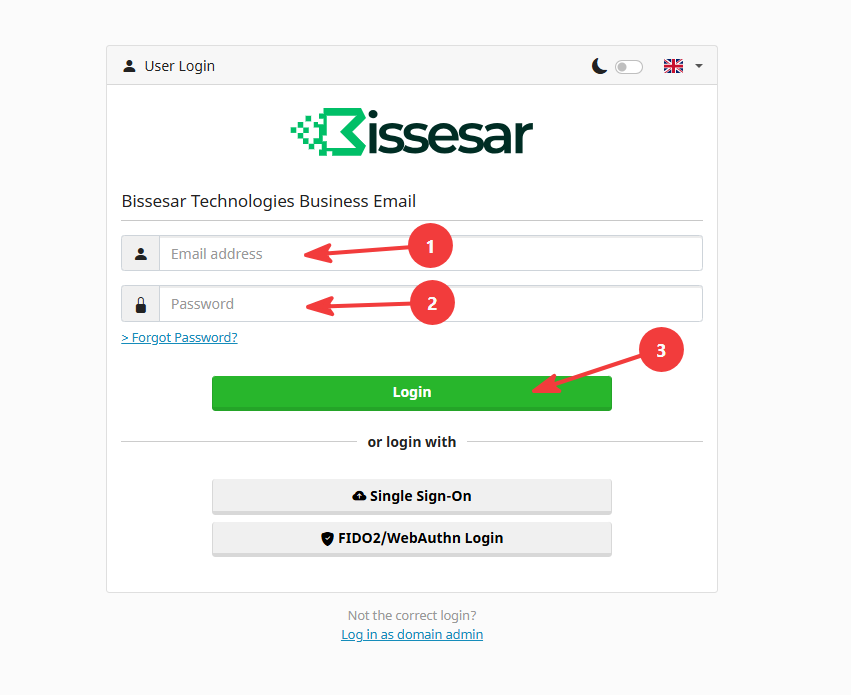
On this page:
- Enter your full email address in the Email address field.
- Enter your current password in the Password field.
- Click the Login button to log in.
Access password settings
Once logged in, you will see the following screen:
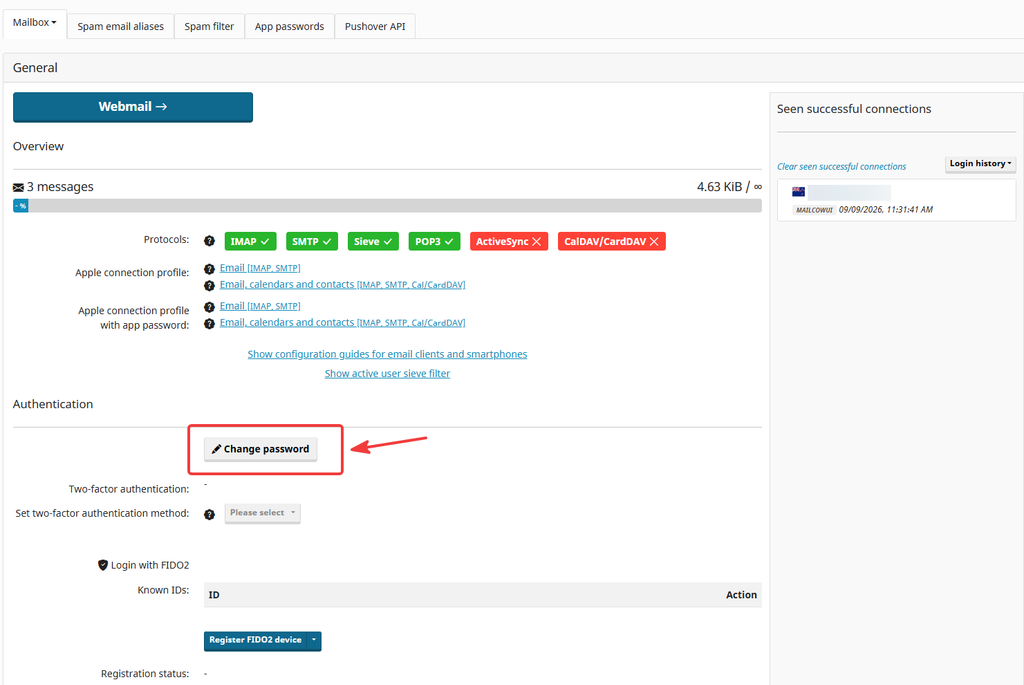
Click on Change password to access the settings.
Change your password
A popup will display on the page, allowing you to change your password:
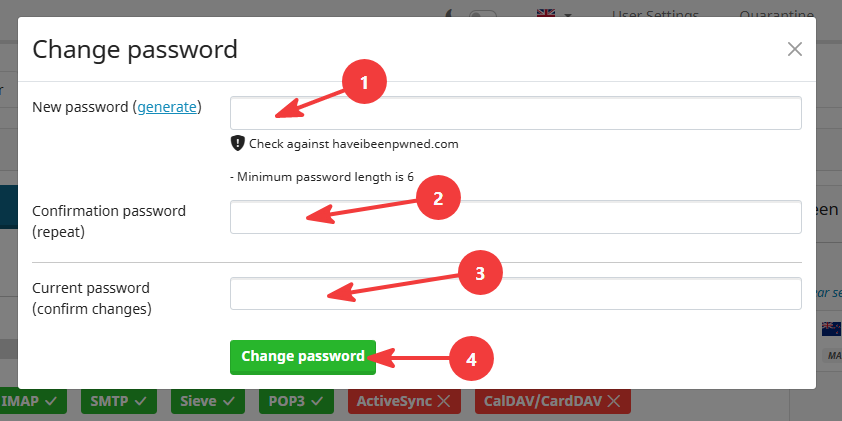
In this popup, do the following:
- Enter your new password in the New password field.
- Enter your new password again in the Confirmation password (repeat) field to confirm.
- Enter your current password in the Current password (confirm changes) field to authorise the password change.
- Click on the Change password button to save your new password.