
Forwarding Your Emails
In some cases, you may wish to forward all your incoming emails to one or more other addresses. These addresses can belong to the same domain or different. We use the Webmail interface to set up forwarding.
Before you begin
You need to have the following to complete all the steps:
- A compatible web browser (such as Google Chrome, Microsoft Edge, Mozilla Firefox, etc.)
- A stable internet connection.
- A desktop or laptop computer (Windows, macOS, or Linux).
Log in to Webmail
From a compatible web browser, visit https://mail.bissesar.net.nz to log in to Webmail:
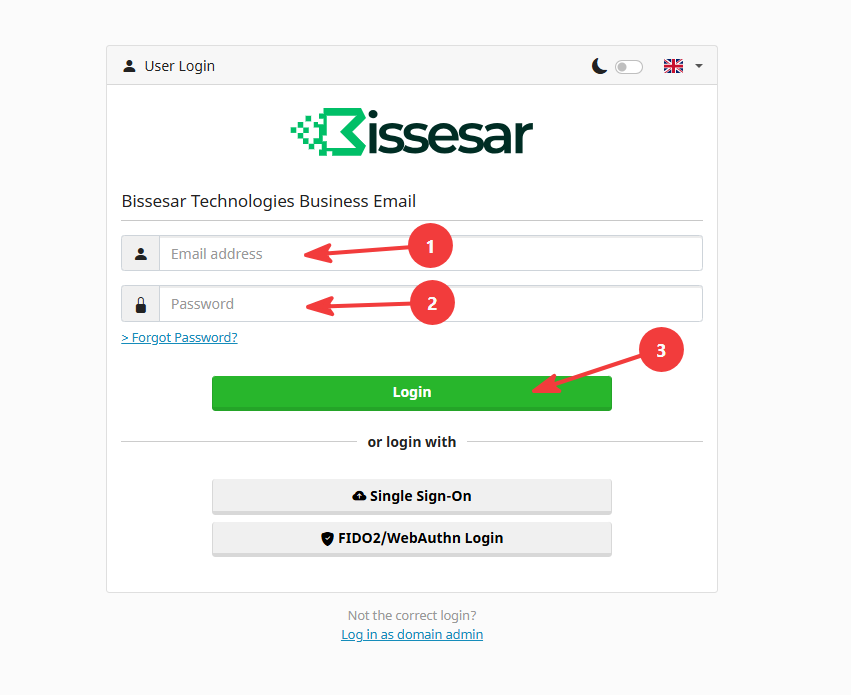
On this page, do the following:
- Enter your full email address in the Email address field.
- Enter your password in the Password field.
- Click on the Login button to log in.
You should be automatically redirected to Webmail. If you see the settings page instead, click on Webmail to enter your Webmail.
Access your preferences
Once you are logged in to Webmail, you need to navigate to the preferences page:
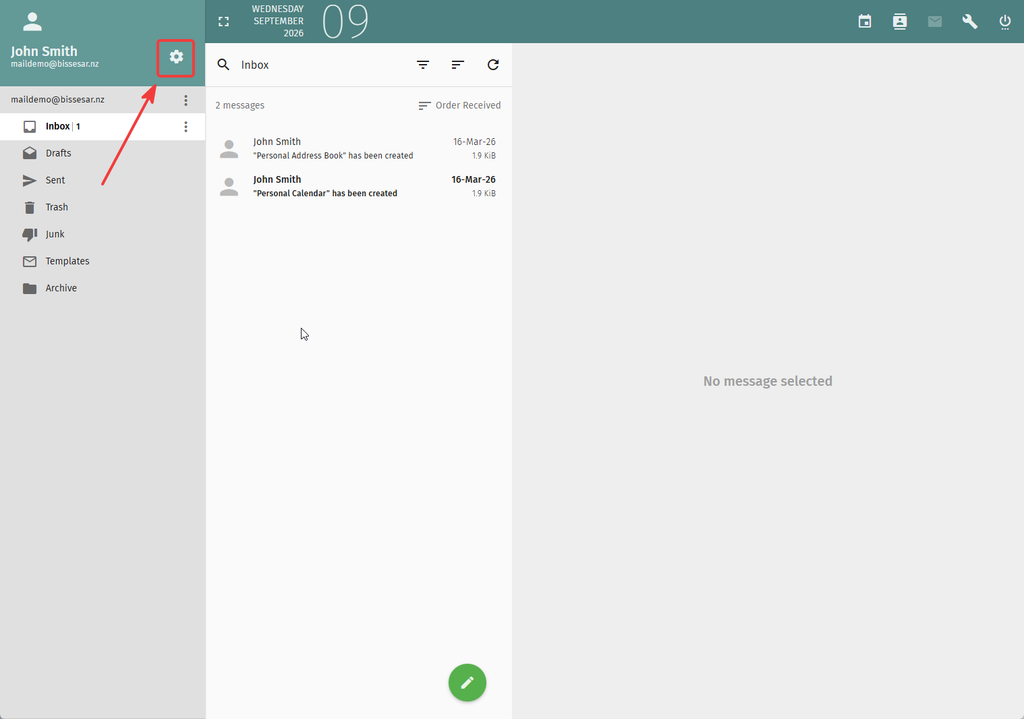
Click the gear icon on the top-right of the screen to enter your preferences page.
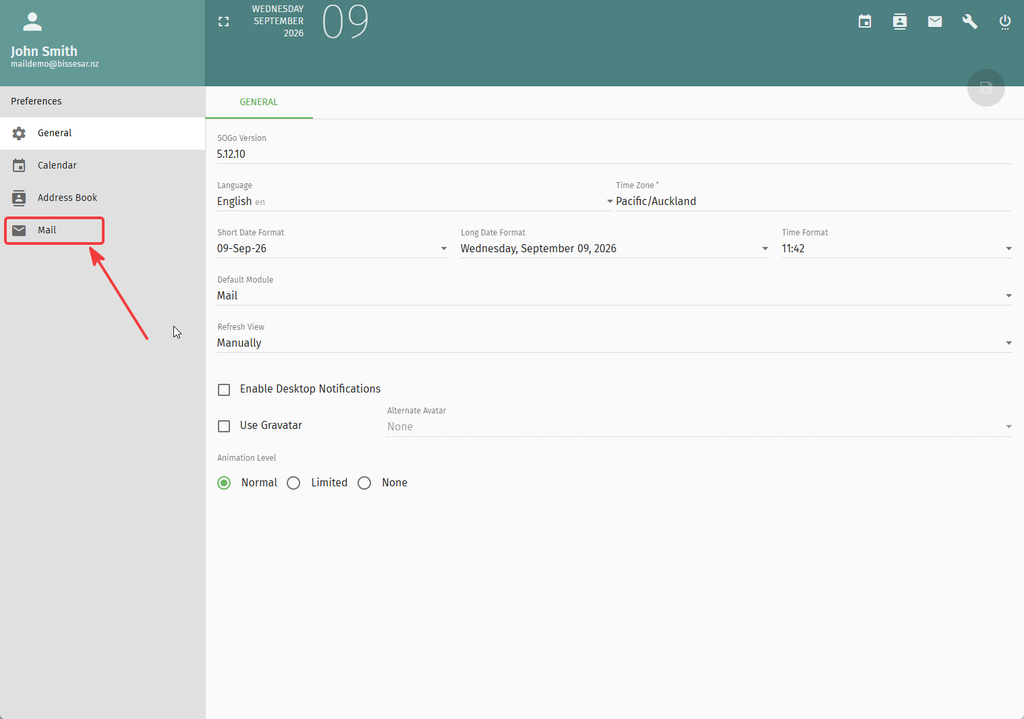
Once you arrive at the preferences page, enter the Mail settings as shown below:
Access the forward settings
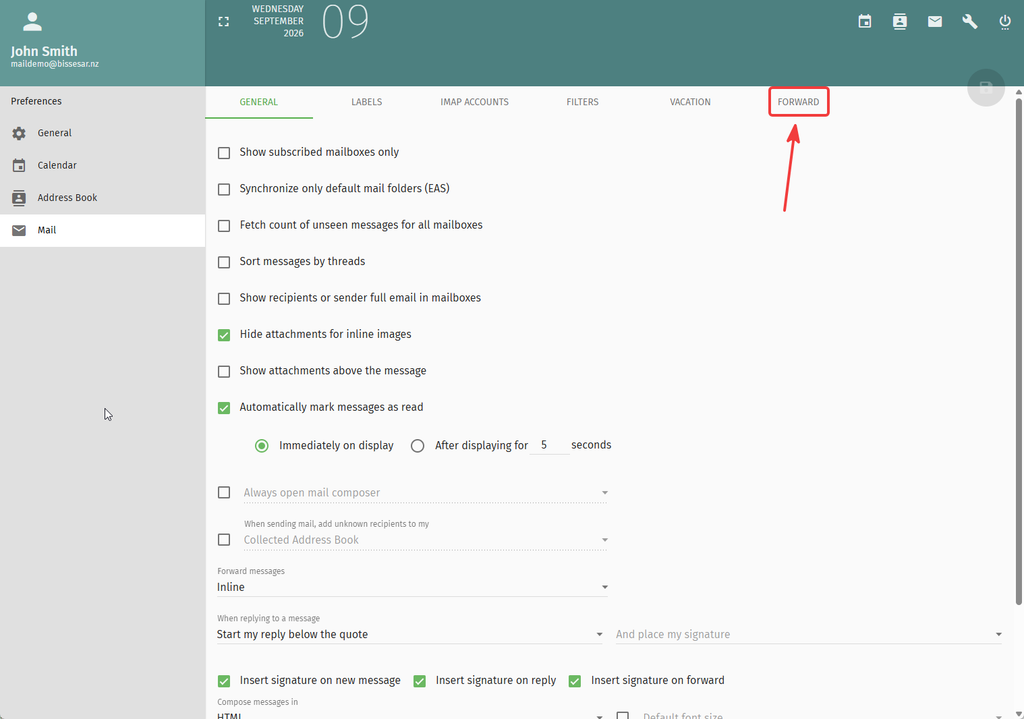
Once the page loads, select the FORWARD option as shown below:
Set up your forwarding address
Once the page loads, you can set up your forwarding addresses.
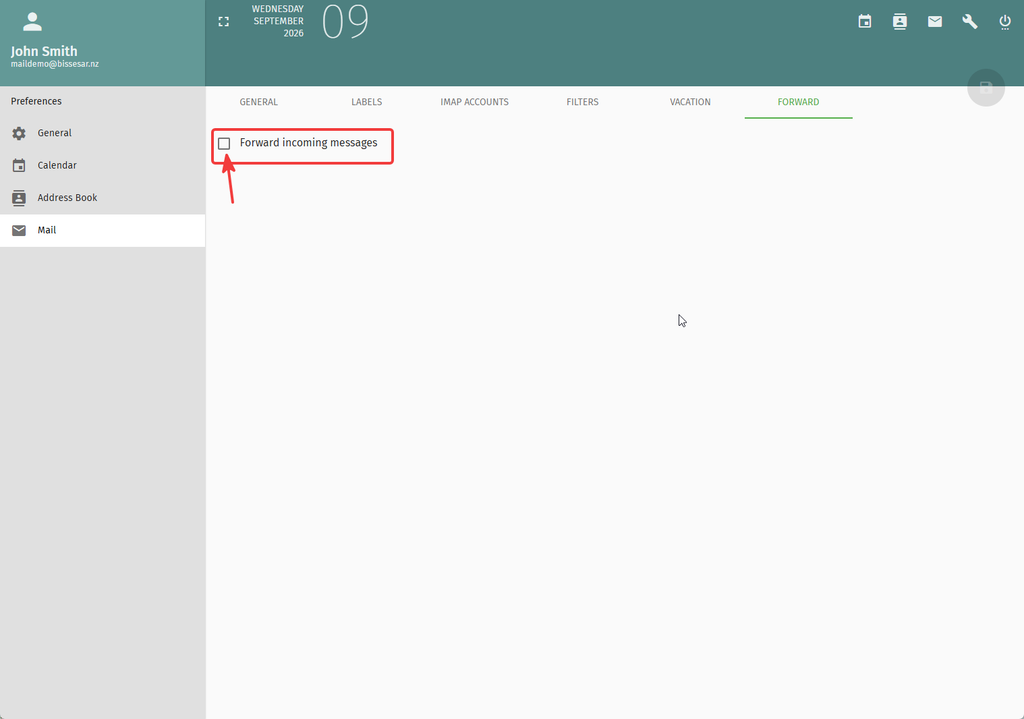
Click on the Forward incoming messages checkbox to continue.
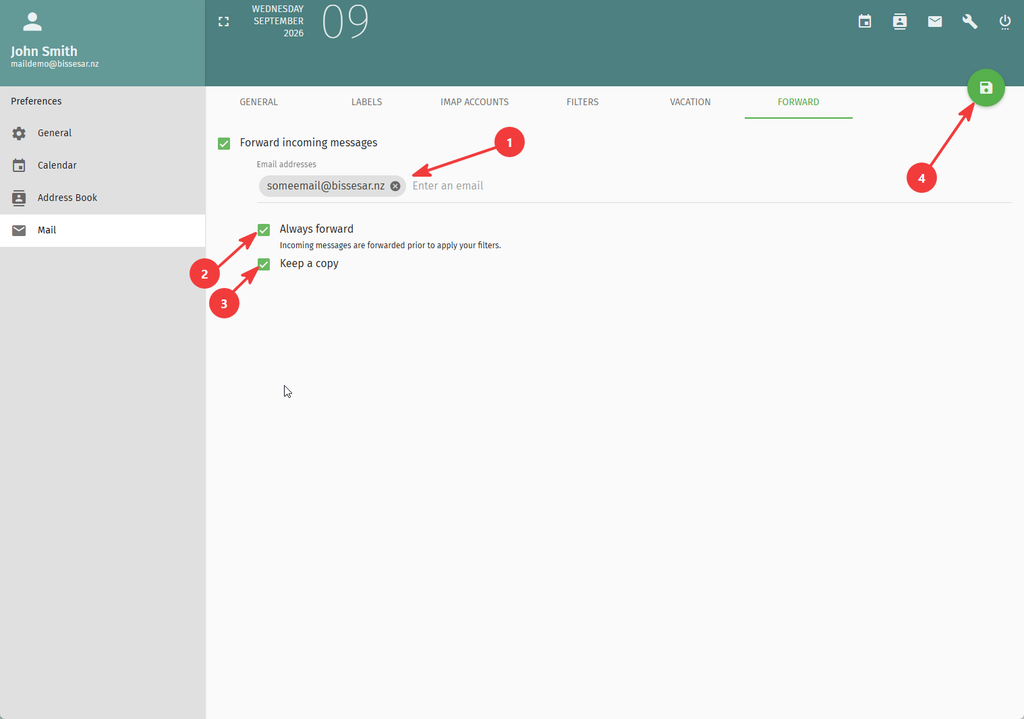
The page will display your configuration options. On this page, do the following:
- Enter the email address to which you wish to forward incoming emails in the Email addresses field. You can enter as many email addresses as you wish by separating each email address with a comma.
- Click to check the Always forward checkbox. Doing this ensures all your emails are forwarded before any other filters are applied.
- Click to check the Keep a copy checkbox. Doing this ensures that a copy of all incoming emails remain on your account.
- Click on the save icon on the top-left of the screen to save your forward settings.